EggRider V2 DisplayLink
ButtonsLink
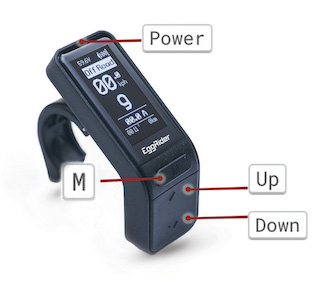
Button FunctionsLink
Button functionality is determined by the duration of the press:
- Short press less than 1.5 seconds
- Medium press between 1.5 and 3 seconds
- Long press more than 3 seconds
Power On/OffLink
Power short press
Increase Assist LevelLink
Up short press
Decrease Assist LevelLink
Down short press
M Button FunctionsLink
The M button behavior depends on your screen layout option and current screen:
Layout v1/v2:
- On Main screen: M short press - Toggle Road/OffRoad modes
- On Main screen: M long press - View stats screen (trip data)
- On Stats screen: M short press - Returns to main screen
Layout v3:
- On Main screen: M short press - Cycle through dynamic values options
- On Main screen: M medium press - View stats screen (trip data)
- On Main screen: M long press - Toggle Road/OffRoad modes (cycles through stats screen back to main)
- On Stats screen: M short press - Cycle through stats pages
- On Stats screen: M long press - Returns to main screen
Activate HeadlightLink
Down long press - Toggle headlight, keep holding to toggle display brightness
Adjust BrightnessLink
Down continuously - Cycles through display brightness Auto, High, Low
Walk AssistLink
Up continuously - Helps the motor push the bike while walking
Update Firmware ModeLink
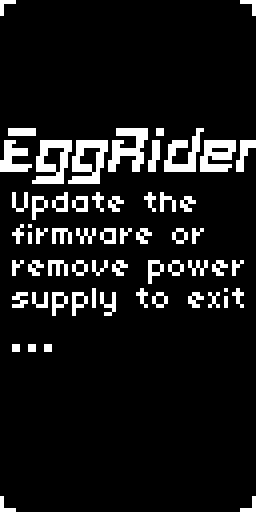
When the display is OFF press and hold Up+Power until display turns ON
Reset Display To Factory SettingsLink
Resets only the display settings. Bafang also stores settings in the controller and they will not be affected.
When display is OFF press and hold M+Power until the display turns ON
Reset TripLink
Available from firmware version v2.6.49
Down long press with stats screen on
Change Selected BatteryLink
Available from firmware version v2.6.49
Up long press with stats screen on
Save settings
Settings, mode, levels, odometer and trip data are saved when the system is shut down from Power button. If the power supply is cut before pressing the Power button, the data is not saved into the permanent memory.
EggRider V2 display screensLink
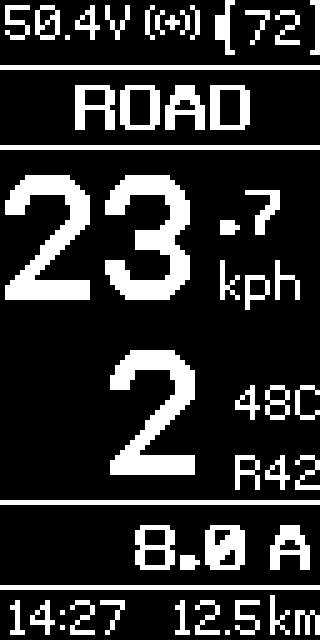
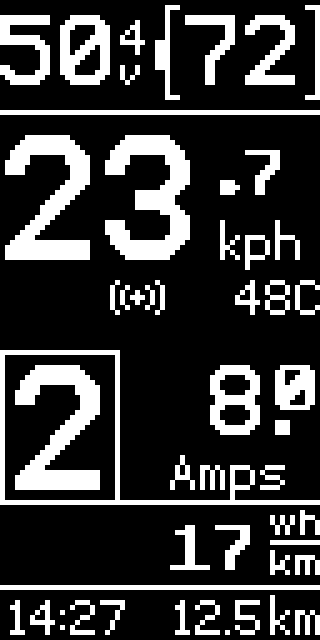
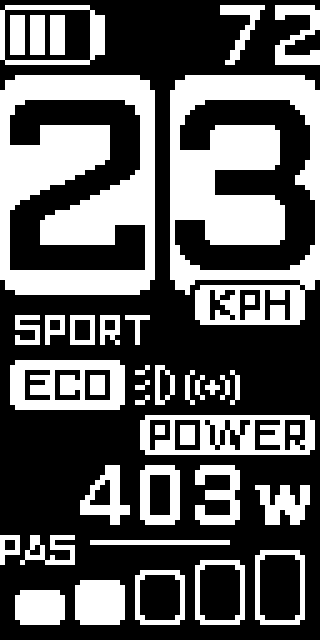
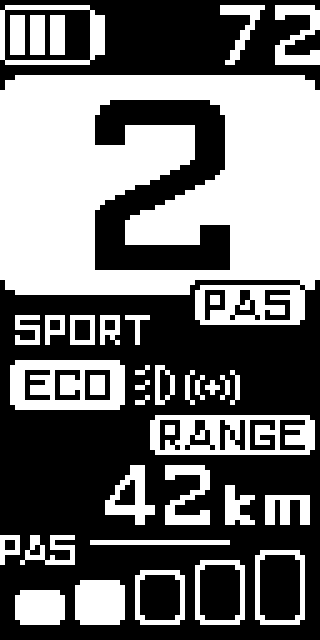
EggRider display offers different screen layouts: v1, v2, or v3. See display settings how to change the layout.
Screens layout v1/v2Link
| Main screen layout v1 | Main screen layout v2 | Stats screen | Update screen |
|---|---|---|---|
 |  |  |  |
Screens layout v3Link
| Main screen | PAS change | Trip data | ODO data |
|---|---|---|---|
 |  |  |  |
Main screen contentLink
The layout v1 is used as an example to showcase all possible icons on the screen. Although the information is positioned differently, the basic icons remain consistent across layouts. See the descriptions below for more.
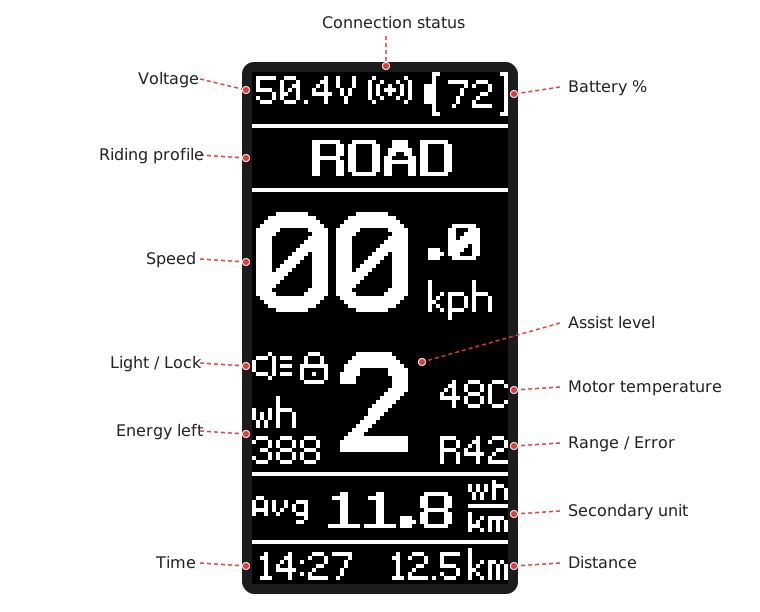
- Battery % - Battery percentage
- Voltage - The battery voltage
- Connection status - The mobile app is connected
- Riding profile - It can be Road/OffRoad or Eco/Sport based on the labels selected
- Speed - Speed in miles per hour (mph) or kilometers per hour (kph)
- Range (Rxx) - Indicates the remaining range in km/miles, where XX represents the distance. Shown once the display has recorded 3 km (2 mi) of riding
- Error - A warning sign and the error code (example: 21) replace the range when the controller reports an error
- Brake - A brake icon replaces the range while you brake, if your controller reports it
- Motor temperature - Shown above the range if your controller reports it
- Light - The headlight is switched on
- Lock - The bike is locked. In layout v3, a lock replaces the speed and "Locked" shows at the bottom
- Walk assist - A walking figure shows at the bottom left while walk assist is on
- Assist Level - The assist level the motor provides
- Energy left - The energy left in the battery, in watt-hours, shown when the secondary unit is Efficiency
- Cadence (Pxx) - Pedaling cadence in rpm, shown on bikes with a torque sensor when the secondary unit is not Efficiency
- Secondary Unit - It can be Power (W), Current(A), or Efficiency (watt-hours per distance unit). Below 2 km/h (1 mph) the efficiency is the trip average, marked Avg
- Time - Time of the day, or the time since power on if the clock has not been set from the app
- Distance - Current trip distance
Stats Screen ContentLink
Layout V1 & V2Link
TripLink
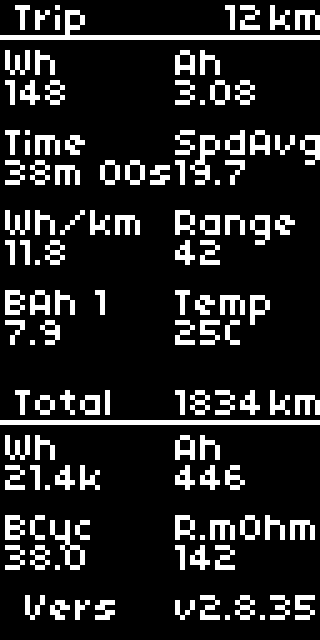
Shows trip data accumulated since the last reset. The trip can be reset manually or automatically at startup, a setting adjustable through display settings.
Note
If the Reset trip -> At start-up, trip data will be reset only after the bike starts moving. This is to allow downloading the past trip data via the mobile app.
- Trip - Travelled distance, at the top
- Wh - Energy used
- mAh - Capacity used, in ampere-hours (Ah) from 1000 mAh up
- Time - Moving time, when speed > 0 value in hours, minutes, seconds
- SpdAvg - Average speed
- Wh/distance(km/mi) - Efficiency since the last restart, lower value gives longer range
- Range - Estimated distance remaining until the battery runs out
- BAh - The charge left in the selected battery profile (1, 2 or 3), in ampere-hours, estimated from its declared capacity and the battery percentage
- Temp - Temperature of the display
TotalLink
Lifetime stats
- Total - Total traveled distance in kilometers or miles
- Wh - Total energy used by the bike, measured in watt-hours
- Ah - Total capacity used from the battery, measured in ampere-hours
- BCyc - Battery cycles, estimating how many times the battery has been fully charged, based on its declared capacity
- R.mOhm - Battery series resistance (calculated in the last hour or so). Lower values indicate a healthier battery with better performance, while higher values may suggest wear or inefficiency
- Vers - Firmware version of the display, at the bottom
Layout V3Link
The layout V3 is available with firmware and app version v2.7 and above.
It provides more detailed data compared to the layouts V1 and V2.
Each stats page shows its name for a second when it opens, then scrolls up to show all its values.
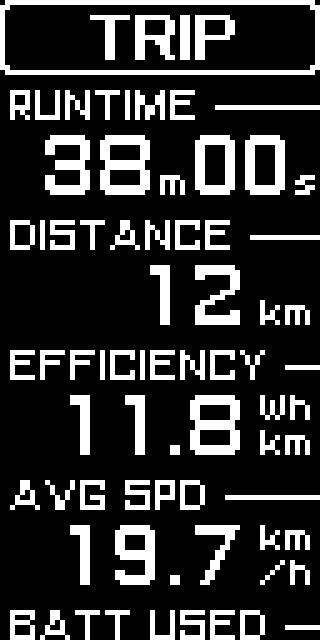
TripLink
Shows trip data accumulated since the last reset. The trip can be reset manually or automatically at startup, a setting adjustable through display settings.
Note
If the Reset trip -> At start-up, trip data will be reset only after the bike starts moving. This is to allow downloading the past trip data via the mobile app.
- Runtime - The total duration of the current trip during which the bike was moving (speed > 0), in minutes and seconds, hours and minutes, or days and hours as it grows
- Distance - Travelled distance for the current trip
- Efficiency - Average efficiency since the last restart, lower value gives longer range
- Avg Spd - Average speed
- Batt used - Energy taken from the battery during the trip. On bikes with regeneration it takes turns with Batt regen, the energy recovered
ODOLink
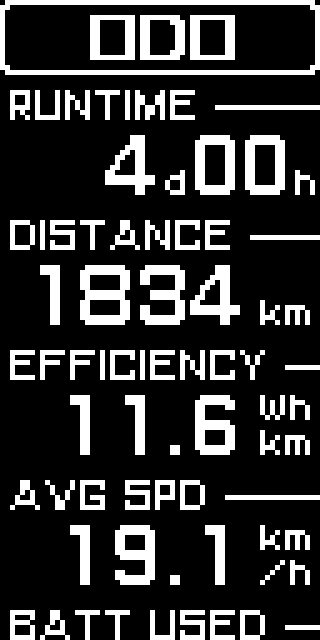
Lifetime data: the trip data of every ride added up.
- Runtime - The total duration during which the bike was moving (speed > 0), in minutes and seconds, hours and minutes, or days and hours as it grows
- Distance - Total travelled distance
- Efficiency - Average efficiency calculated based on the accumulated data so far
- Avg Spd - Average speed calculated based on the accumulated data so far
- Batt used - Energy taken from the battery so far
MotorLink
- Current - The electric current being used by the motor, measured in amperes (A)
- Power - The power output of the motor, measured in watts (W)
- RPM - Motor speed in revolutions per minute, if your controller reports it
- Cont Temp - Controller temperature, if your controller reports it
- Mot Temp - Motor temperature, if your controller reports it
BatteryLink
You can set up 3 battery profiles. The current profile is indicated at the top, and the data below corresponds to that profile.
- Voltage - Voltage
- SOC - The percentage of battery capacity that is currently available
- Remaining - The remaining charge in the battery, measured in ampere-hours (Ah)
- Cycles - The number of battery cycles, estimating how many times the battery has been fully charged. This calculation is based on the declared capacity of the battery
- Resistance - Battery series resistance, measured in milliohms (mΩ), calculated over the past hour or so. Lower values indicate a healthier battery with better performance, while higher values may suggest wear or inefficiency
RiderLink
This page is only shown if the bike has a torque sensor.
- Power - Human power being applied to the bike's pedals or crankset
- Cadence - The speed at which a cyclist is pedaling
- Torque - The rotational force applied to the pedals by the rider
- Workout - The total energy the rider has put in during the trip
- Calories - Calories spent so far
SoftLink
- MAC - EggRider device ID
- Version - Firmware version of the display
- Build - Firmware build number
- ADC Volt - The electrical voltage powering the display. If the voltage is too low or fluctuates significantly, it may indicate issues with the power supply or the display’s performance
- Disp Temp - Temperature of the display